25% off on product page · save $6.00
Screen Smart: Set Digital Boundaries for Kids at Home
Start with one moment that matters
A useful screen boundary begins with what you want to protect: sleep, focused homework, meals together, or time to play. Choose one or two moments rather than trying to settle every screen-time question at once. Ask your children what they enjoy online and which activities are hardest to stop.
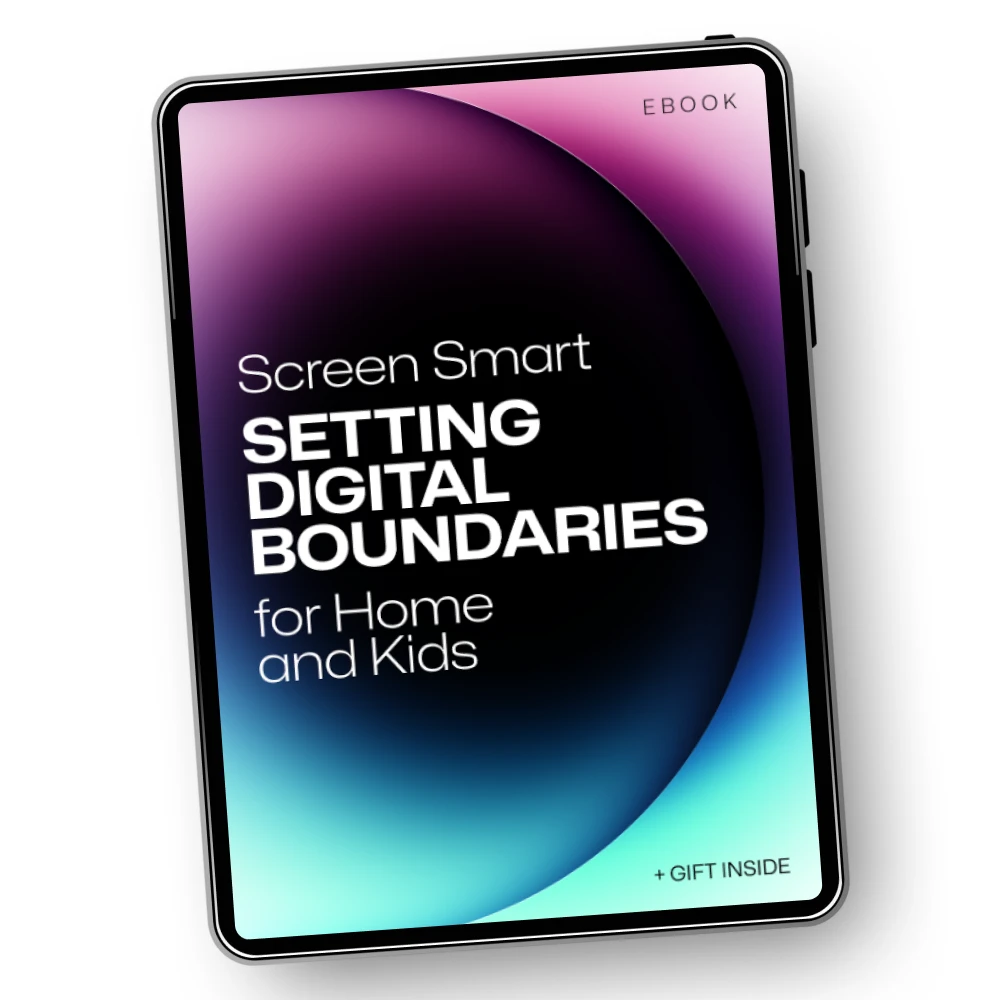
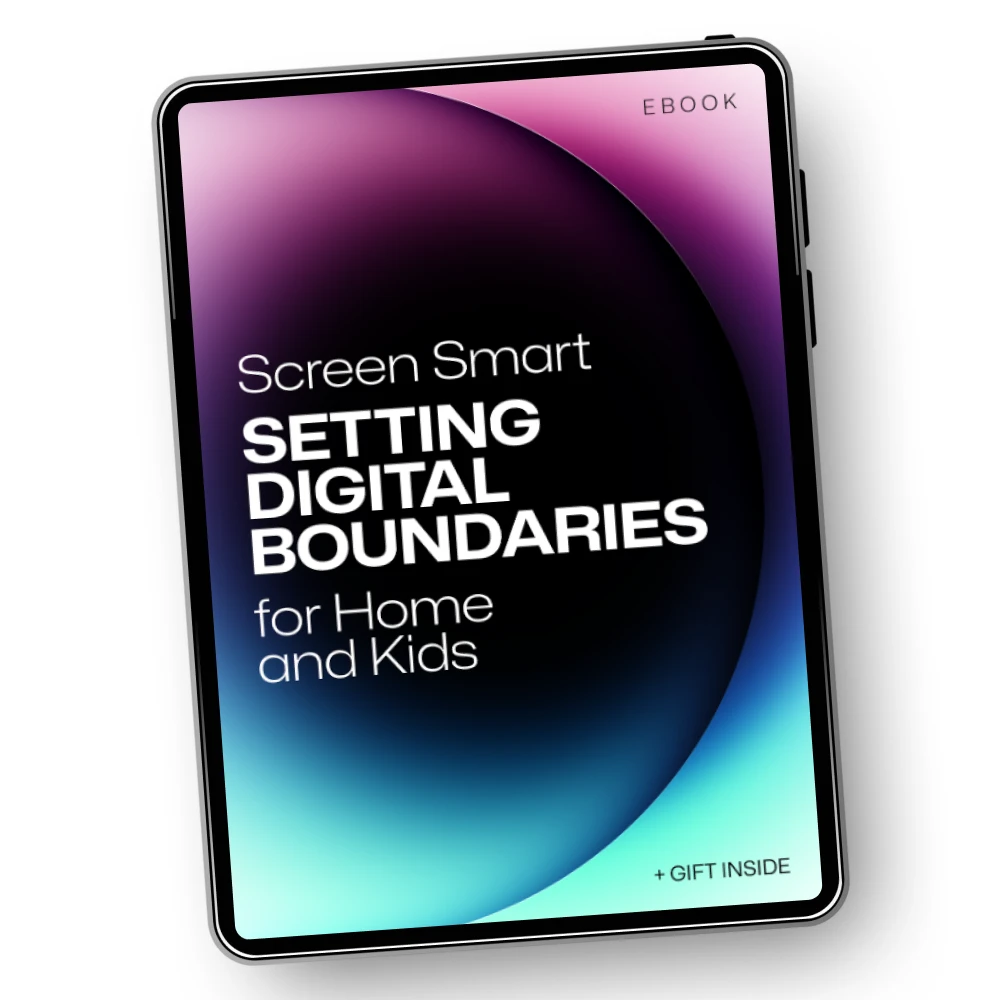
Our Screen Smart family guide is a starting point for turning those conversations into a plan. You can adapt the plan to your household instead of treating one daily time limit as the answer to every situation.
Make a short family agreement
Write down when screens are welcome, when they are put away, where devices charge overnight, and how someone can ask for extra time. Keep the wording simple enough for your children to repeat. It also helps to distinguish among activities: a video call with family, a school assignment, and an entertainment video do not have to follow identical rules.
The American Academy of Pediatrics’ Family Media Plan offers another way to start that conversation. Whatever format you choose, leave room for a brief weekly check-in. Your children can raise concerns, and you can change a rule that sounded good on paper but is not helping at home.
Screen Smart: Setting Digital Boundaries for Home and Kids – A Practical Guide for Families
View product
Choose boundaries for everyday moments
| Moment |
Possible boundary |
Follow-through |
| Meals |
Keep personal devices away from the table. |
Set them in a shared spot before sitting down. |
| Homework |
Use devices needed for the task; pause entertainment. |
Agree on a break time beforehand. |
| Bedtime |
Charge devices outside sleeping spaces. |
Offer an offline wind-down activity. |
| Weekends |
Plan screen windows around other activities. |
Talk through the day together in the morning. |
These are options, not a schedule you must copy. If your family works different hours or shares devices, choose rules you can carry out consistently.
Let settings support the conversation
A device limit works best when your child knows what it does and what happens when time runs out. Try one control, such as a bedtime schedule or an app limit, before adding more restrictions. On an iPhone or iPad, look for Screen Time; many Android devices have Digital Wellbeing. Controls may also sit within an app or account. Keep account recovery details with an adult.
Check the product’s listed specifications when evaluating let settings support the conversation.
Make room for real life
Travel, illness, and special events may call for exceptions. Say when the usual plan resumes so a temporary change stays temporary. A shared task after dinner can also provide a clear next step; our reusable kitchen cleaning cloths are one option for a cleanup routine, not a replacement for talking through the transition.
Revisit your agreement weekly. As children grow, invite them to suggest changes and explain what is or is not working. If you want a structured starting point for that discussion, explore our Screen Smart family guide.
Keep the plan useful as your family changes
Notice whether your agreement protects sleep and daily responsibilities while leaving room for connection and fun. As children get older, invite them to propose boundaries and point out when their own habits drift. Our Screen Smart: Setting Digital Boundaries for Home and Kids – A Practical Guide for Families is a structured starting point if you want help keeping that discussion going. Choose one conversation to have this week; a workable first step matters more than a perfect set of rules.
Before choosing, compare the product details with your daily routine, available space, care needs, and preferred setup. The strongest option is usually the one that fits the intended use clearly and remains simple to clean, store, and check before repeat use.
FAQ
Where do I find my screen settings?
Look for Screen Time on an iPhone or iPad and Digital Wellbeing on many Android devices. Parental controls may also be inside a particular device, app, or account; menus vary.
Which display mode is best for TV?
Standard or Cinema/Movie mode is a reasonable place to start; choose the one that looks comfortable in your room. Display mode changes picture appearance, not your family’s screen-time agreement.
How do you change your screen to normal?
If the picture is stretched or cropped, open the display settings and try Auto, Original, or the recommended resolution. The exact option depends on your TV, computer, or connected device.
See if Screen Smart: Setting Digital Boundaries for Home and Kids – A Practical Guide for Families fits your setup
View product









Leave a comment